How to Build a Custom Track in RideTrack
RideTrack lets you create your own GPS timing setup by placing timing lines directly on the satellite map. You can build a closed-loop Circuit for lap timing or an open Sprint for point-to-point runs.
Choose the Right Track Mode
Best for closed loops and lap timing
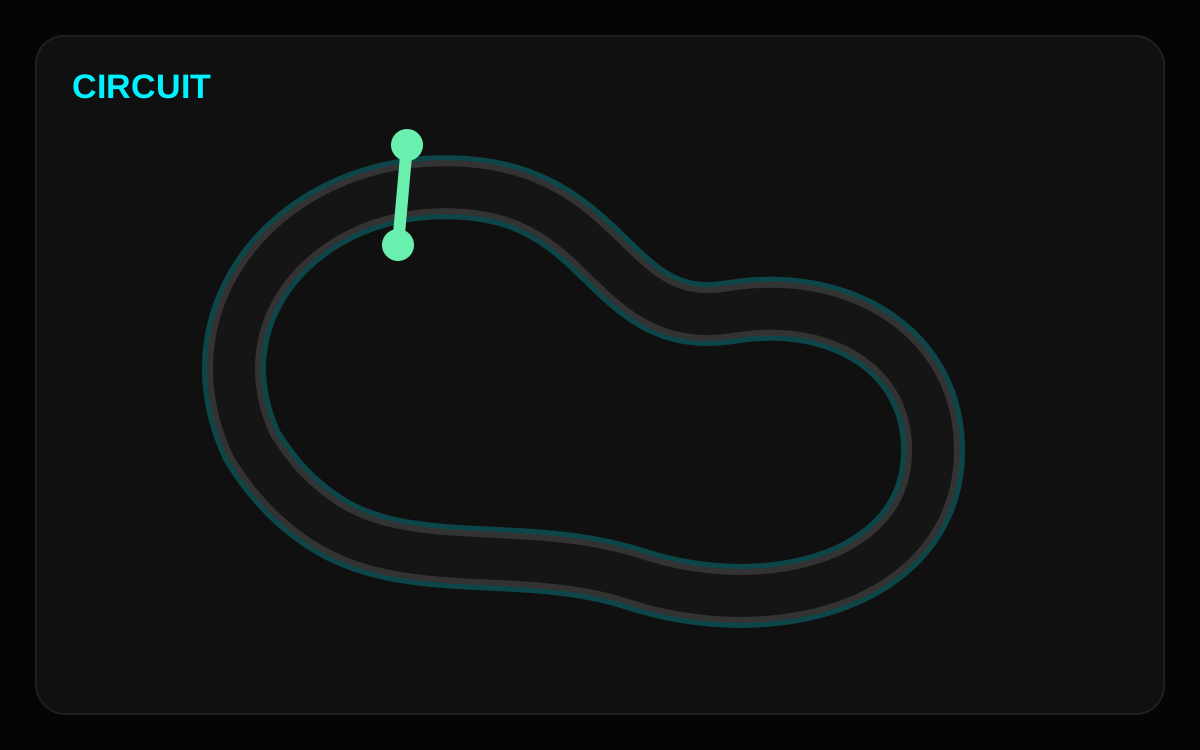
Circuit mode uses one timing line as both the start and finish line. Every time you cross that line again, RideTrack records another lap.
Best for one-way runs
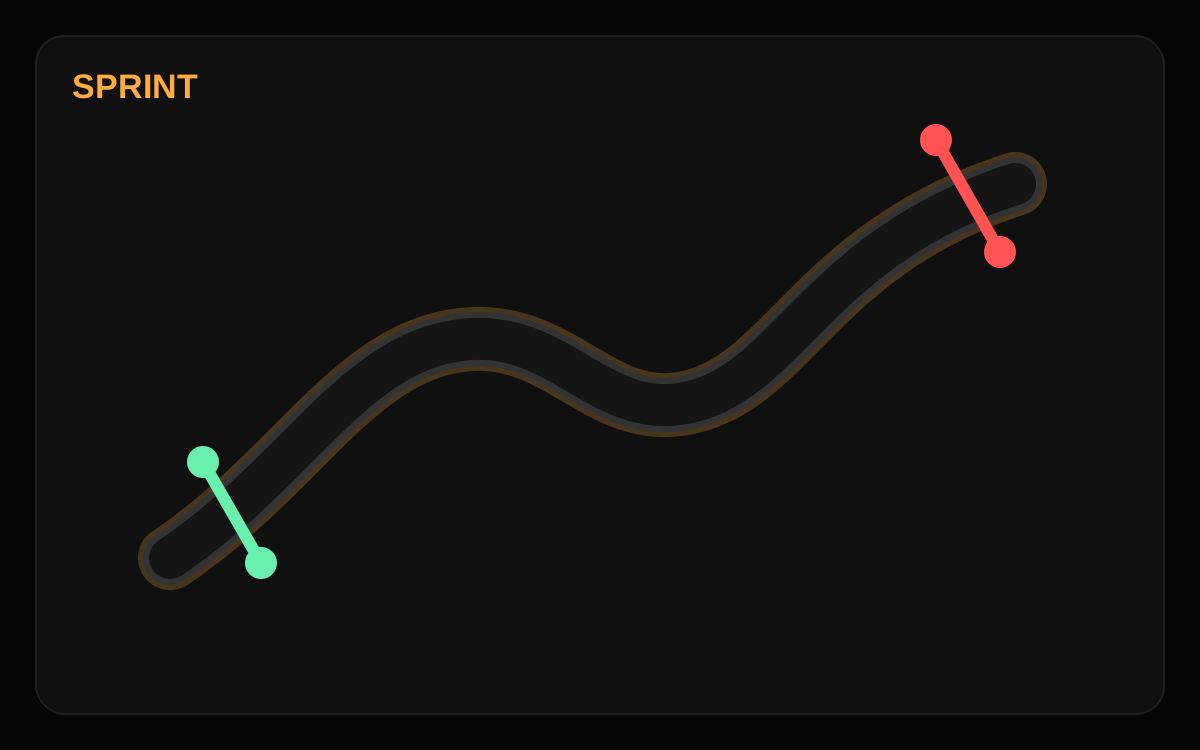
Sprint mode uses two separate timing lines. Whichever line you cross first becomes the start, and the other line becomes the finish.
Timing Line Diagrams
How to Create a Circuit Track
- Open RideTrack and go to your custom tracks area.
- Select Create Custom Track.
- Choose Circuit mode.
- Tap the map to set Start/Finish Line Point A.
- Tap the opposite side of the track to set Start/Finish Line Point B.
- Enter a clear track name, such as the circuit name or your private loop name.
- Tap Save Track.
In Circuit mode, the green line is your start/finish gate. Use it at the main straight or another section where you can cross the line cleanly each lap. Circuit tracks are shown with the RideTrack cyan mode color in your track list.
How to Create a Sprint Track
- Open RideTrack and go to your custom tracks area.
- Select Create Custom Track.
- Choose Sprint mode.
- Set the first timing line by placing Point A and Point B across one end of your route.
- Tap Next: Set Finish.
- Set the second timing line by placing Point A and Point B across the other end of your route.
- Enter a track name that describes the run.
- Tap Save Track.
In Sprint mode, the green line and red line are both timing gates. Cross either one first to start the timer, then cross the other one to stop it. This mode is ideal for hill climbs, drag-style runs, testing zones, or any route where the two timing points are in different places. Sprint tracks are shown with the orange mode color in your track list.
Placement Tips
- Place each timing line fully across the riding path, not along the direction of travel.
- Use wider, clearer sections of the track when possible for more reliable GPS crossing detection.
- Avoid placing timing lines immediately after tight corners, tunnels, heavy tree cover, or GPS blind spots.
- For Sprint tracks, keep the two timing lines clearly separated.
- Name tracks clearly so they are easy to find later in your track list.